
Built for Adults, Not Sanitized for Safety

Magic Hour AI Video Generator

You already know most AI video tools blur the moment you try to make something adult. They refuse the AI scene you want, or they swap your AI model’s face for a stranger. Magic Hour AI works on your terms. Upload a still you already own, pick the Wan 2.7 Spicy model in the Image to Video tab, and start a video from that still. The model can still change details, so review the file in History before you keep it.

See Pricing
Magic Hour AI
Wan 2.7 Spicy
Seedream 5 Pro
Club light, a black corset already in motion

Club light, a black corset already in motion

Window light, a nude still ready for image to video

Window light, a nude still ready for image to video

An outdoor still, dress open, ready to animate

An outdoor still, dress open, ready to animate

When a normal AI video tool blurs the scene

Every other AI video site either blurs your output, refuses your prompt, or quietly swaps your AI model. You came here to make something adult, and you should not have to fight the AI tool. These four cards cover the real frustrations you have already hit elsewhere and how this product actually handles them. Adult and NSFW content creation is allowed within Magic Hour AI.

Your Scene Gets Sanitized

You upload an AI still you spent time setting up, and the AI tool either blurs the result or refuses the job entirely. That does not happen here. Adult and NSFW creation is part of the product — the Wan 2.7 Spicy model in the Image to Video tab is built for the scenes you want. Which prompt it accepts still depends on the model. The credit estimate shows before Create, and the file lands in History. Email verification is required to receive registration credits in Magic Hour AI.
The Model Keeps Changing

You finally have one AI still you like, but every new AI video tool changes the face, outfit, or background. That is frustrating and wastes your time. When you use Image to Video, you supply the first frame — a JPG, PNG, or WEBP up to 10 MB and at least 300 by 300 pixels. The model works from that still. Details can still shift, so open the finished file in History before you keep it. Completed creations remain in your Magic Hour AI History for later access.

You Do Not Know Where to Start

Should you begin with a photo, write a text scene, or generate an AI still first? The homepage workbench opens on AI Image to Video, but the same bar includes Text to Image, Image to Image, Text to Video, Video Edit, and Video Extend. Text to Image opens on Seedream 5 Pro, so you can create a still that fits your scene, then move it into Image to Video. You choose the starting point. Magic Hour AI keeps the finished AI file on this account.

You Already Have a Still You Want to Use

You have a photo or generated AI image that is exactly right, and you want to animate it without losing the details. AI Image to Video accepts JPG, PNG, or WEBP up to 10 MB, with a minimum resolution of 300 by 300 pixels. An end frame is optional, so you can let the model finish naturally. The credit estimate shows before you hit Create, so you know the cost upfront. Magic Hour AI keeps the finished AI file on this account.

Start from the still, the sentence, or the clip you already have

You probably have an AI scene in mind but are not sure how to translate it into a prompt or a workflow. These four cards show concrete adult scenarios and exactly which AI tool and model to use for each. No guesswork, no wasted credits. For support with Magic Hour AI, email support@magichourai.pro for assistance.

You Want to Animate a Still You Already Shot
✦Start from this window-lit still. Keep the face and the room.Image to video: a small shift of the shoulders, nothing else.

You Want to Animate a Still You Already Shot

You have a photo from a shoot or a generated AI image that is exactly the AI scene you want. Open the Image to Video tab, select Wan 2.7 Spicy, and upload that still as the first frame. The model will animate the existing scene while keeping the adult content intact. Finished videos save to History on the same account. For AI video clips, Magic Hour AI opens Wan 2.7 Spicy first.

You Want to Write a Scene from Scratch

You have a scenario in your head but no AI image yet. Use Text to Image first — it opens on Seedream 5 Pro, which generates an AI still from your description. Once you have a still you like, switch to Image to Video and use that image as the first frame. One credit balance pays for both steps, and everything stays in your account. Magic Hour AI displays your credit cost before you confirm the Create action.

You Want to Edit an Existing Adult Video

You already have an AI video but need to change the ending or extend the duration. Use the AI Video Edit or Video Extend tabs on the same homepage bar. Duration and resolution are chosen before you submit, and the credit estimate shows before Create. No hidden charges for a run you did not mean to submit. Magic Hour AI keeps the finished AI file on this account.

You Want to Generate a Still First, Then Animate

You are not sure what the final AI scene should look like, so you want to experiment with stills before committing to an AI video. Start in Text to Image with Seedream 5 Pro. Once you have a still you like, move it into Image to Video with Wan 2.7 Spicy. The same account, the same credit balance, and no extra login. Magic Hour AI keeps the finished AI file on this account.

What changes once image and video share one account

You have tried other tools and know exactly what does not work. These four cards explain the concrete differences that matter for adult creation. No marketing fluff — just the facts about how this product avoids the frustrations you already experienced. Magic Hour AI lets adults create AI images and AI video in your browser.

When a SFW tool blurs the scene
✦Use this bedroom still when the robe and the light both matter.Animate the fabric. Do not change the face.

When a SFW tool blurs the scene

Other tools blur or refuse the AI scene you want. Here, adult and NSFW creation is part of the product. The Wan 2.7 Spicy AI model in Image to Video is adult-capable, and which prompt a model accepts depends on the model you select. A model can still refuse a prompt. Wan 2.7 Spicy is the adult-capable image-to-video model on the homepage. Seedream 5 Pro is the text-to-image model. Seedream 5 Pro powers the AI image generation inside Magic Hour AI for stills.

One Account for Images and Video
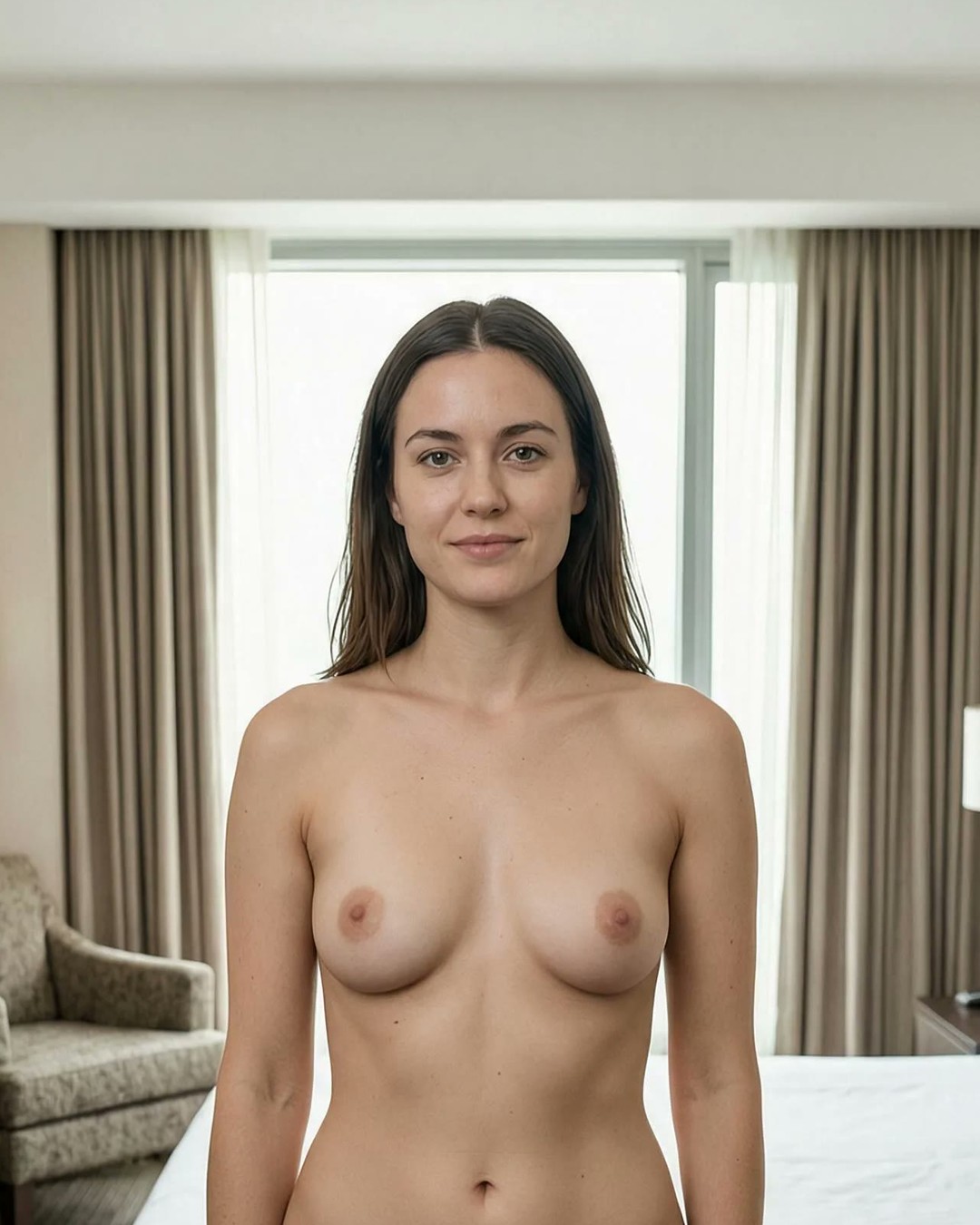
✦This is the still. Image to video starts from this frame.Keep the hotel room. Add only a small motion.

One Account for Images and Video

You do not want to keep a second account just for images or install a local AI model. Text to Image opens on Seedream 5 Pro, and AI Image to Video uses Wan 2.7 Spicy — both on the same homepage workbench. Finished images and videos stay in History on the same account, and one credit balance pays for both. Before you click Create, Magic Hour AI shows you the credits you will use.

No Surprise Charges or Lost Files
✦Text to image made this still. Move it into image to video when the face is right.One account keeps the still and the clip together.

No Surprise Charges or Lost Files

You have been charged for a run you did not mean to submit, or you could not find the finished file afterward. Here, the credit estimate is shown before you hit Create, and duration and resolution are chosen before submit. Finished files stay in History on the same account, so you never lose a completed AI video.

Real Credits After Verification
✦A closer still is enough when the face and the corset should stay.Check the credit cost before you send this frame.

Real Credits After Verification

Signup gifts that appear before email verification are not real here. Registration credits are considered only after email verification and the existing account, device, and network checks. Opening the site does not add credits. You know exactly what you have and when you have it.

Pick the tab that matches the file in front of you

You do not have to guess which AI tool to open. The homepage workbench shows all options in one bar, and each workflow has a clear starting point. These four cards help you decide based on what you already have and what you want to make. After you finish your work, Magic Hour AI stores completed files in your History.

Nude portrait by a window
Outdoor portrait in an open dress
Bedroom portrait in a sheer robe
Hotel bedroom portrait
Club portrait in a black corset

You Have a Photo — Start With Image to Video

If you already have an AI still you like, the AI Image to Video tab is your starting point. It opens by default on the homepage workbench. Upload a JPG, PNG, or WEBP up to 10 MB and at least 300 by 300 pixels. Select Wan 2.7 Spicy for adult scenes. An end frame is optional, and the credit estimate shows before Create. Magic Hour AI supports adult and NSFW content as part of its product offering.

You Have a Text Idea — Start With Text to Image

If you have an AI scene description but no AI image yet, use Text to Image first. It opens on Seedream 5 Pro, which generates a still from your prompt. Once you have a still you like, move it into Image to Video with Wan 2.7 Spicy. One credit balance covers both steps, and everything stays in History. The Wan 2.7 Spicy model powers AI video generation in Magic Hour AI.

You Have a Video to Edit or Extend

If you already have an AI video that needs changes, use AI Video Edit or Video Extend from the same homepage bar. Duration and resolution are chosen before submit, and the credit estimate shows before you confirm. Finished files save to History on the same account, so you can revisit or download them later.

You Want to Generate a Still From Another Image

If you have a photo but want to change the outfit, background, or pose before animating, use AI Image to Image. It is on the same homepage bar. Once you have the new AI still, move it into Image to Video with Wan 2.7 Spicy. The same account, the same credit balance, and no extra steps.

Set the frame, the model, and the cost before you submit

You want control over the final AI video, not a black box that decides everything for you. These four cards cover the specific settings and options you can adjust before you submit a job. No hidden defaults, no surprises. Magic Hour AI checks your account, device, and network after email verification for credits.

Choose Duration and Resolution Before Submit

You do not want to discover the output is too short or too low resolution after it is done. Duration and resolution are chosen before you hit Create in AI Image to Video. The credit estimate updates based on your selections, so you know the cost upfront. No surprise charges for a run you did not mean to submit. Magic Hour AI is a browser-based AI studio for AI image and AI video creation.

Pick the Model That Matches Your Scene

Not all models accept the same prompts. Adult and NSFW creation is part of the product, but which prompt an AI model accepts depends on the AI model you select. Wan 2.7 Spicy is the adult-capable model for Image to Video. Seedream 5 Pro handles Text to Image. You choose the model, you control the output. You can add an optional end frame to your AI video in Magic Hour AI.

Use Your Own Still as the First Frame

You do not have to start from a generated AI image. AI Image to Video accepts JPG, PNG, or WEBP up to 10 MB and at least 300 by 300 pixels. Upload a photo you already own, and the model animates from that frame. An end frame is optional, so you can let the video finish naturally or set a specific endpoint.

Keep Everything in One Account History

Finished images and videos stay in History on the same account. You do not need to download immediately or worry about losing the file. One credit balance pays for both images and AI video runs. You can open the finished file in History and download it. A new edit is another run, and the credit estimate shows before you submit it.

Credits are visible before Create, not after a surprise charge

You have been burned by fake signup gifts and hidden charges. These four cards explain exactly how credits, verification, and account checks work here. No promises that vanish after you click. Magic Hour AI opens Seedream 5 Pro when a new AI image starts from text.

Real Credits After Email Verification

Registration credits are considered only after email verification and the existing account, device, and network checks. Opening the site does not add credits. Signup gifts that appear before verification are not real here. You know exactly when credits are available and that they are real. Wan 2.7 Spicy handles the AI video clips you produce in Magic Hour AI.

One Credit Balance for Images and Video

You do not need separate accounts or balances for images versus AI video. Text to Image with Seedream 5 Pro and AI Image to Video with Wan 2.7 Spicy use the same credit balance. Finished files stay in History on the same account. One login, one balance, one place for everything. You can select an optional end frame for your AI video in Magic Hour AI.

Credit Estimate Before Every Submission

You have been charged for a run you did not mean to submit. Here, the credit estimate is shown before you hit Create. Duration and resolution are chosen before submit, and the estimate updates accordingly. You confirm the cost before committing any credits.

No Hidden Charges for Adult Content

Adult and NSFW creation is part of the product. The Wan 2.7 Spicy model in Image to Video is adult-capable, and there is no extra fee for using it. Which prompt a model accepts depends on the model you select, not on a hidden surcharge. The credit estimate you see is the credit estimate you pay.

Four routes from a still or a sentence to a file in History

You want to make a video right now, not read a manual. These four cards give you the exact steps for the most common adult creation workflows. Each card includes a concrete fact from the product so you know exactly what to expect. You can include an optional end frame when you generate AI video with Magic Hour AI.

Four routes from a still or a sentence to a file in History
  1. How to Animate a Still You Already Have

    Open the homepage workbench — the Image to Video tab is open by default. Upload a JPG, PNG, or WEBP up to 10 MB and at least 300 by 300 pixels. Select Wan 2.7 Spicy as the model for adult scenes. Choose duration and resolution, check the credit estimate, then hit Create. The finished video saves to History. Registration credits in Magic Hour AI require email verification plus checks on account, device, and network.

  2. How to Generate a Still Then Animate It

    Open Text to Image from the same homepage bar — it opens on Seedream 5 Pro. Write your scene description and generate a still. Once you have a still you like, switch to Image to Video and upload it as the first frame. Select Wan 2.7 Spicy, set duration and resolution, check the credit estimate, and create. One account, one balance. Magic Hour AI uses Seedream 5 Pro when you start an AI image still from text.

  3. How to Edit or Extend an Existing Video

    Open Video Edit or Video Extend from the homepage bar. Upload the video you want to change. Duration and resolution are chosen before submit, and the credit estimate shows before Create. The edited or extended version saves to History on the same account. You can revisit the original and the new version anytime.

  4. How to Use an End Frame for Precision

    In Image to Video, you can optionally upload an end frame. This tells the model where the video should finish. Upload your first frame as a JPG, PNG, or WEBP up to 10 MB and at least 300 by 300 pixels, then upload the end frame. The model animates from the start to that endpoint. The credit estimate shows before Create.

Questions people ask after a censored tool wastes a run

You have questions that most FAQ pages avoid because they do not want to admit limits. These six answers are direct and specific, based on how the product actually works. Only users 18 and older can generate AI image and AI video with Magic Hour AI.

Does this tool censor adult content?

No. Adult and NSFW creation is part of the product. The Wan 2.7 Spicy model in the Image to Video tab is adult-capable. Which prompt a model accepts still depends on the model you select, It is not a general SFW studio. A selected model can still refuse a prompt, so choose Wan 2.7 Spicy for an adult image-to-video run and review the file in History. Only adults 18 and over may use Magic Hour AI for AI image and AI video creation.

What file types and sizes does Image to Video accept?

Image to Video accepts JPG, PNG, or WEBP stills up to 10 MB, with a minimum resolution of 300 by 300 pixels. An end frame is optional. Duration and resolution are chosen before submit, and the credit estimate shows before you hit Create. Finished videos save to History on the same account. Your AI image uploads to Magic Hour AI must be JPG, PNG, or WEBP under 10 MB.

How do credits work here?

One credit balance pays for both images and video runs. Registration credits are considered only after email verification and the existing account, device, and network checks. Opening the site does not add credits. The credit estimate is shown before every submission, so you know the cost before you commit.

Can I use the same account for images and video?

Yes. The homepage workbench includes Text to Image, Image to Image, Image to Video, Text to Video, Video Edit, and Video Extend — all on the same account. Finished images and videos stay in History on the same account. One login, one balance, one place for everything.

What if I do not like the output?

You can try different models or adjust your prompt. Which prompt a model accepts depends on the model you select. Wan 2.7 Spicy handles adult scenes in Image to Video, while Seedream 5 Pro handles Text to Image. Finished files stay in History, so you can revisit and compare results without re-uploading.

Is there a limit on how many videos I can make?

Your credit balance determines how many runs you can submit. Duration and resolution are chosen before submit, and the credit estimate shows before Create. Finished files save to History on the same account. There is no separate limit on video runs beyond your available credits.

Your First Real Adult AI Video Studio
Magic Hour AI

Your First Real Adult AI Video Studio

You do not need a local AI model, a second account, or a workaround. The homepage workbench opens on AI Image to Video, and the adult-capable Wan 2.7 Spicy model is right there. Text to Image opens on Seedream 5 Pro, so you can generate a still first if you prefer. Finished files stay in History on the same account, and one credit balance pays for both images and videos. Registration credits are only added after email verification and account, device, and network checks — no fake signup gifts. Start with a photo you already like, and see what a real adult AI video tool can do. On Magic Hour AI, an AI image file must be at least 300 by 300 pixels and no larger than 10 MB.